

RSS Management
RSS Manager Page
The RSS Manager page displays all your RSS subscriptions with their connection status.
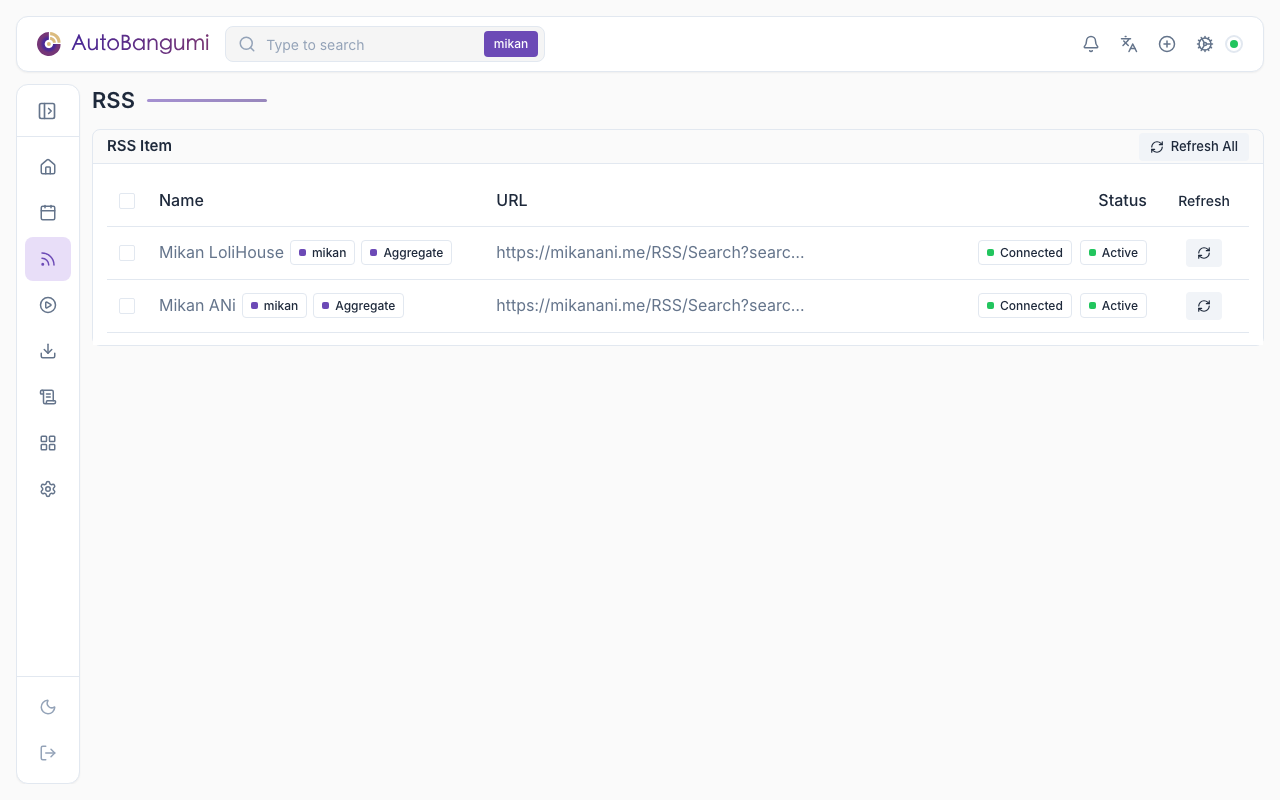
Connection Status
Since v3.2, AB tracks the connection status of each RSS source:
| Status | Description |
|---|---|
| Connected (green) | RSS source is reachable and returning valid data |
| Error (red) | RSS source failed to respond or returned invalid data |
When a source shows an error, hover over the status label to see the error details in a tooltip.
AB automatically updates the connection status on each RSS refresh cycle.
Adding Collections
AB provides two manual download methods: Collect and Subscribe.
- Collect downloads all episodes at once, suitable for completed anime.
- Subscribe adds an automatic download rule with the corresponding RSS link, suitable for ongoing anime.
Parsing RSS Links
AB supports parsing collection RSS links from all resource sites. Find the collection RSS for your desired anime on the corresponding site, click the + button in the upper right corner of AB, and paste the RSS link in the popup window.
Adding Downloads
If parsing succeeds, a window will appear showing the parsed anime information. Click Collect or Subscribe to add it to the download queue.
When you have more than one downloader, the dialog has a Downloader field. Use it to select the downloader for the torrents of this subscription. Leave it empty to use the default instance. See Multiple Downloaders.
Global Include Filter
The Filter of a rule excludes torrents. Since 4.0, the built-in ingest-filters plugin also supplies a global include filter. In Settings → Plugins, enter a list of regular expressions (case-insensitive) in the include option of ingest-filters. Then all subscriptions download only torrents whose name matches one of the expressions. When the list is empty, AB does not filter.
Common Issues
If a parsing error occurs, it may be due to an incorrect RSS link or an unsupported subtitle group naming format.
Managing Bangumi
Since v3.0, AB provides manual anime management in the WebUI, allowing you to manually adjust incorrectly parsed anime information.
Editing Anime Information
In the anime list, click the anime poster to enter the anime information page. After modifying the information, click Apply. AB will readjust the directory and automatically rename files based on your changes.
Deleting Anime
Since v3.0, you can manually delete anime. Click the anime poster, enter the information page, and click Delete.
WARNING
After deleting anime, if the RSS subscription hasn't been cancelled, AB will still re-parse it. To disable the download rule, use Disable Anime.
Disabling Anime
Since v3.0, you can manually disable anime. Click the anime poster, enter the information page, and click Disable.
Once disabled, the anime poster will be grayed out and sorted to the end. To re-enable the download rule, click Enable.