

Torrent Search
Since v3.1, AB includes a search feature for quickly finding anime.
Using the Search Feature
WARNING
The search feature relies on the main program's parser. The current version does not support parsing collections. A warning when parsing collections is normal behavior.
The search bar is located in the AB top bar. Click to open the search panel.
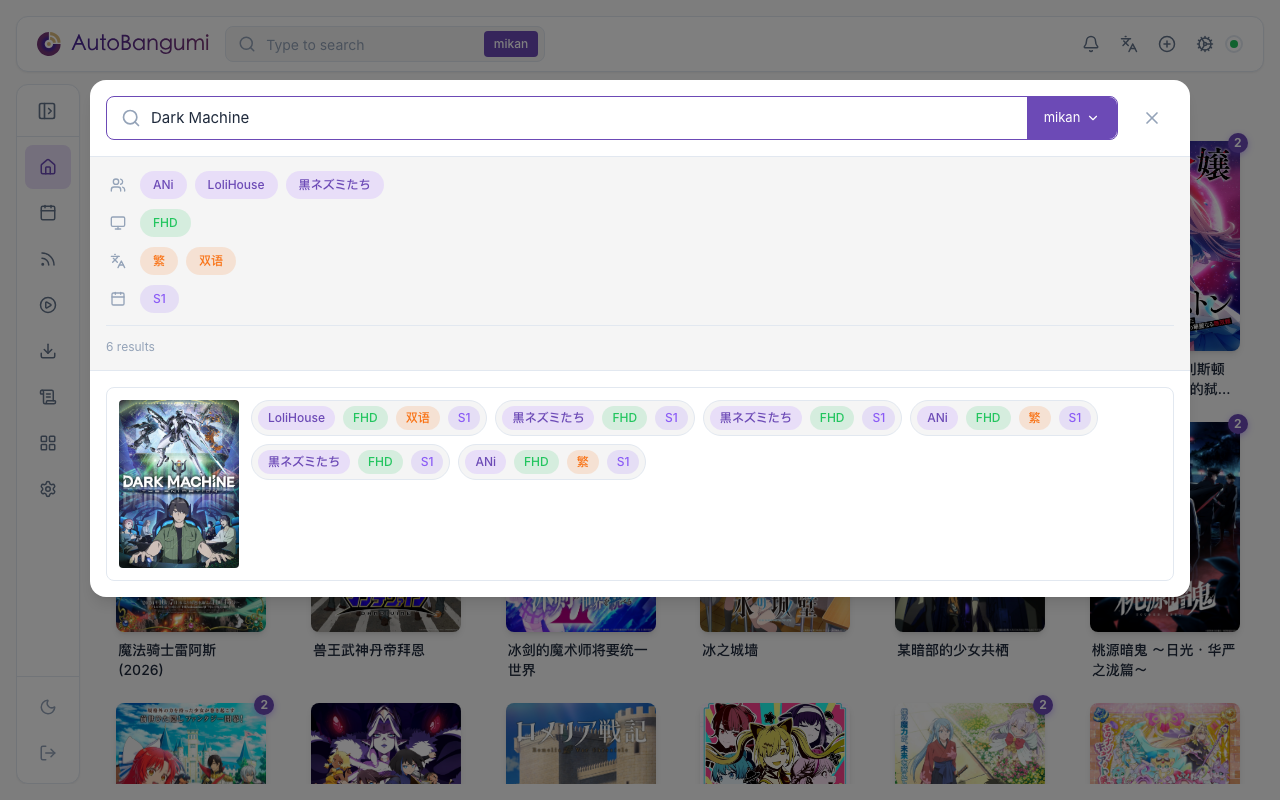
Select the source site, enter keywords, and AB will automatically parse and display search results. To add an anime, click the add button on the right side of the card.
A series that you add from search uses the default downloader. When you have more than one downloader, you can change it later in the Advanced Settings of the series. See Multiple Downloaders.
TIP
When the source is Mikan, AB uses the mikan parser by default. For other sources, the TMDB parser is used.
Managing Search Sources
Since v3.2, you can manage search sources directly in the Settings page without editing JSON files.
Search Provider Settings Panel
Navigate to Config → Search Provider to access the settings panel.
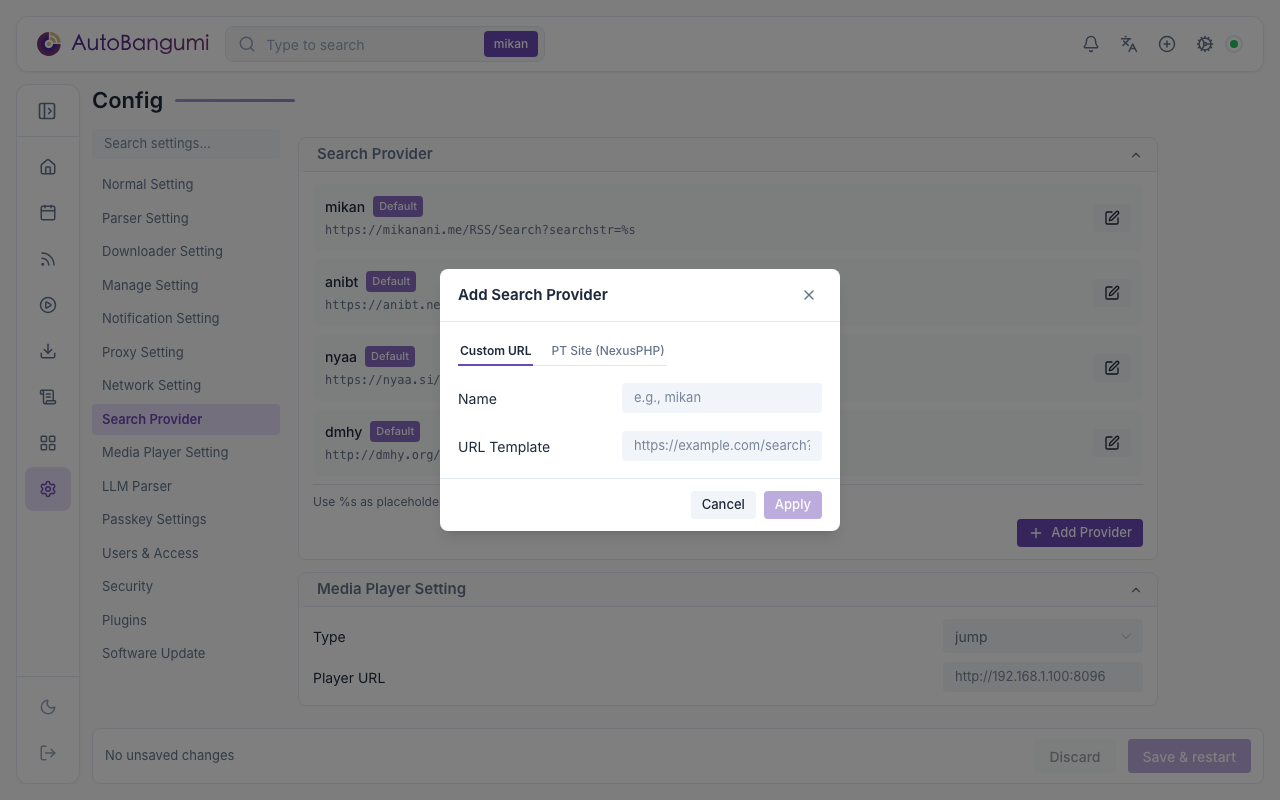
From here you can:
- View all configured search sources
- Add new search sources with the "Add Provider" button
- Edit existing source URLs
- Delete custom sources (default sources mikan, anibt, nyaa, dmhy cannot be deleted)
URL Template Format
When adding a custom source, the URL must contain %s as a placeholder for the search keyword.
Example:
https://example.com/rss/search?q=%sThe %s will be replaced with the user's search query.
Default Sources
The following sources are built-in and cannot be deleted:
| Source | URL Template |
|---|---|
| mikan | https://mikanani.me/RSS/Search?searchstr=%s |
| anibt | https://anibt.net/rss/magnets.xml?q=%s |
| nyaa | https://nyaa.si/?page=rss&q=%s&c=0_0&f=0 |
| dmhy | http://dmhy.org/topics/rss/rss.xml?keyword=%s |
Adding Sources via Config File
You can also manually add sources by editing config/search_provider.json:
{
  "mikan": "https://mikanani.me/RSS/Search?searchstr=%s",
  "nyaa": "https://nyaa.si/?page=rss&q=%s&c=0_0&f=0",
  "dmhy": "http://dmhy.org/topics/rss/rss.xml?keyword=%s",
  "bangumi.moe": "https://bangumi.moe/rss/search/%s"
}