

Bangumi Management
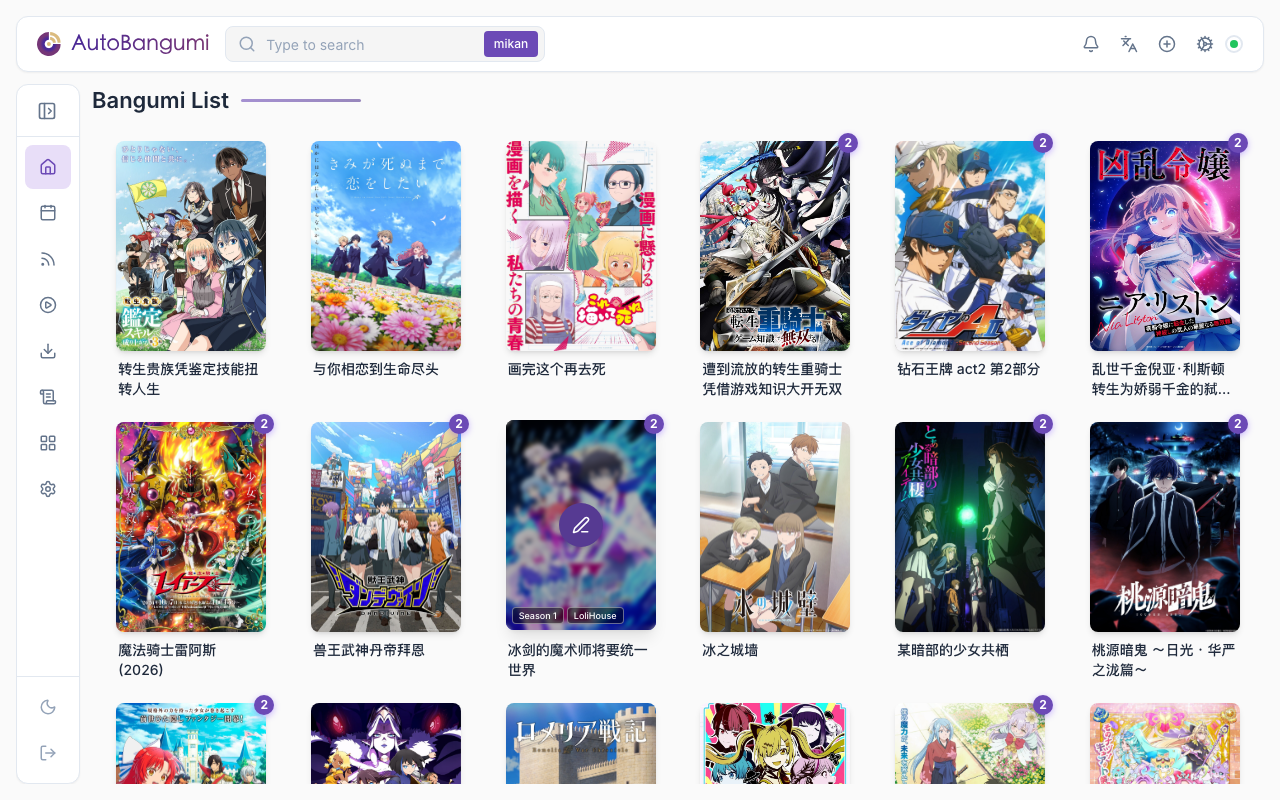
Click an anime poster on the homepage to manage individual anime entries.
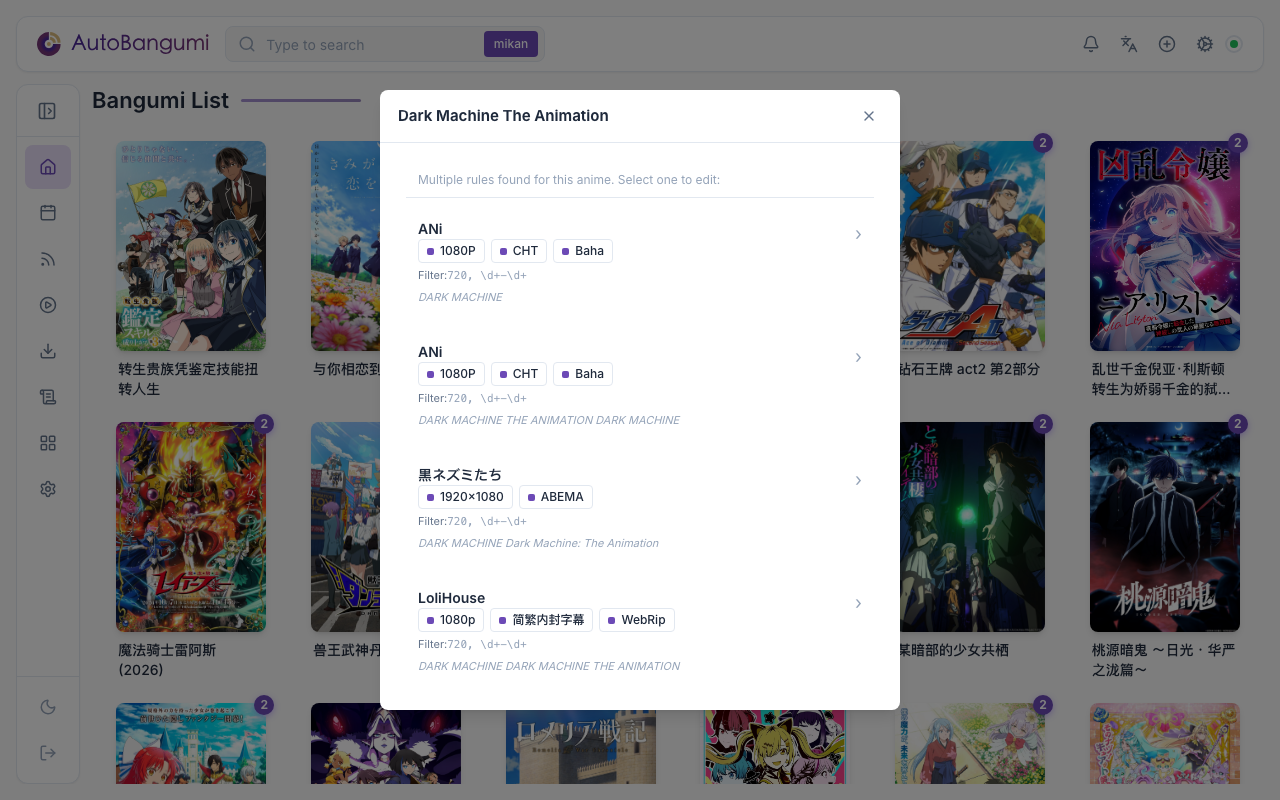
If an anime has multiple download rules (e.g., different subtitle groups), a rule selection popup will appear:
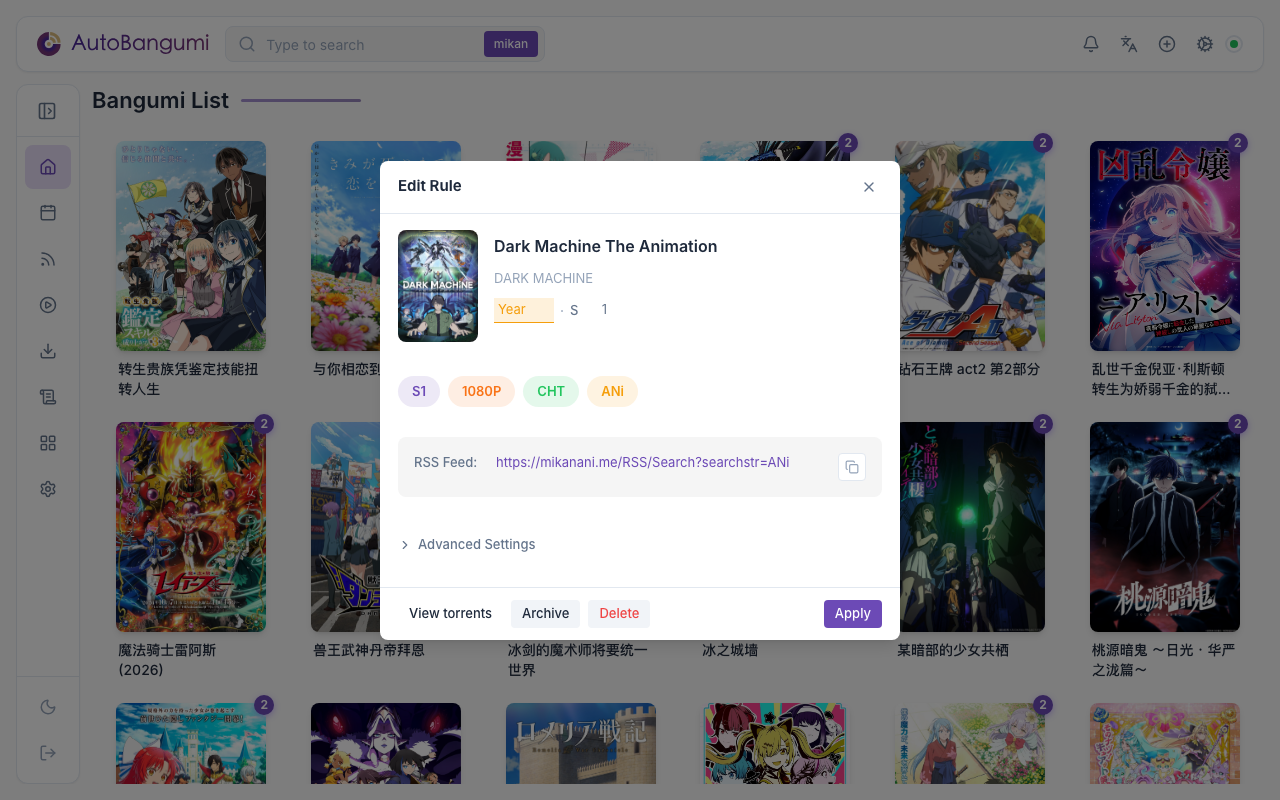
After selecting a rule, the edit modal opens:
Notification Badges
Since v3.2, bangumi cards display iOS-style notification badges to indicate status:
- Yellow badge with
!: Subscription needs review (e.g., offset issues detected) - Number badge: Multiple rules exist for this anime
- Combined badge (e.g.,
! | 2): Has warning and multiple rules
Cards with warnings also display a yellow glow animation to draw attention.
Episode Offset Auto-Detection
Some anime have complex season structures that cause mismatches between RSS episode numbers and TMDB data. For example:
- "Frieren: Beyond Journey's End" Season 1 was broadcast in two parts with a 6-month gap
- RSS may show "S2E01" while TMDB considers it "S1E29"
AB v3.2 can automatically detect these issues:
- Click the Auto Detect button in the edit modal
- AB analyzes TMDB episode air dates to identify "virtual seasons"
- If a mismatch is found, AB suggests the correct offset values
- Click Apply to save the offset
The background scan thread also periodically checks existing subscriptions for offset issues and marks them for review.
Archive / Unarchive Anime
Since v3.2, you can archive completed or inactive anime to keep your list organized.
Manual Archive
- Click on an anime poster
- In the edit modal, click the Archive button
- The anime moves to the "Archived" section at the bottom of the list
Automatic Archive
AB can automatically archive anime when:
- The series status on TMDB shows as "Ended" or "Canceled"
- Use Config → refresh metadata to trigger auto-archive
Viewing Archived Anime
Archived anime appear in a collapsible "Archived" section at the bottom of the bangumi list. Click to expand and view archived items.
Unarchive
To restore an archived anime:
- Expand the "Archived" section
- Click on the anime poster
- Click the Unarchive button
Disable / Delete Anime
Since AB continuously parses aggregated RSS feeds, for download rules from aggregated RSS that you no longer need:
- Disable anime: The anime won't be downloaded or re-parsed
- Remove the subscription from the aggregated RSS
If you delete the anime entry, it will be recreated on the next parse cycle.
Advanced Settings
Click Advanced Settings in the edit modal to access additional options:
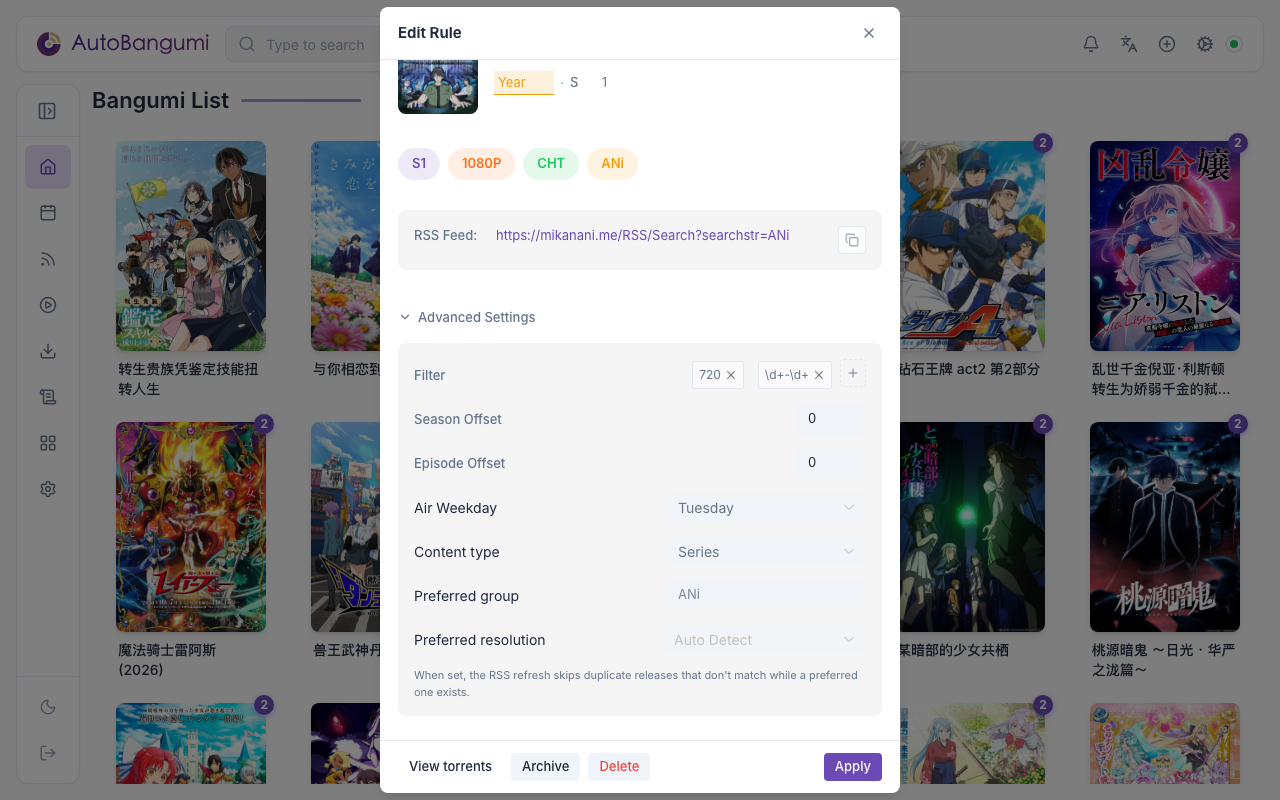
- Season Offset: Adjust the season number offset
- Episode Offset: Adjust the episode number offset
- Filter: Custom regex filter for torrent matching
- Downloader: the downloader that receives new torrents of this rule. This field shows only when you have more than one downloader. Leave it empty to use the default instance. See Multiple Downloaders
Plugin Interface
Plugins can add tabs to the edit dialog ("Rule" is the usual edit form). They can also add action buttons below the title of a bangumi card and widgets at the top of the bangumi list page. See Plugins.