

Plugins
Since 4.0, plugins supply many AB functions: rename methods, downloaders, notification channels, torrent filters and work after organization. Plugins can also add their own pages and controls to the WebUI. This page tells you how to use plugins. To write a plugin, see Plugin Development.
Built-in Plugins
These plugins come with AB. You do not need to install them:
| Plugin id | Default | Function |
|---|---|---|
rename | Enabled | Supplies the rename methods pn, advance and template. See File Renaming |
ingest-filters | Enabled | Global include filter: AB downloads only torrents whose name matches one of the expressions. When the list is empty, AB does not filter |
media-server-refresh | Enabled | Asks Jellyfin, Emby or Plex to refresh the library after AB organizes a torrent. If the URL or the API key is empty, it does nothing |
hardlink | Disabled | Links organized files into a media library folder. See Hard Links to a Media Library |
AB supplies the qBittorrent and aria2 downloaders and the notification channels itself. You cannot disable them, and they are not in the plugin list.
Plugin Settings
Open Settings → Plugins. Each plugin has a card:
- Name, id and version.
- An Enabled switch.
- State: "Running", "Disabled" or "Error".
- Source: "Built-in", "Local" or "pip". An unsigned plugin also has an "Unsigned" tag.
- Error: shows when the plugin did not load or AB disabled it.
- Declared permissions: the permissions in the plugin manifest, for example
fs.writeornetwork. This is information only. AB does not limit the plugin with it. - Options: expand it to see the settings form of the plugin.
Changes on plugin cards are not part of the global save at the bottom of the settings page. The switch and the Save options button write to config.json immediately. The change applies immediately. You do not need to restart AB.
Configure a Plugin
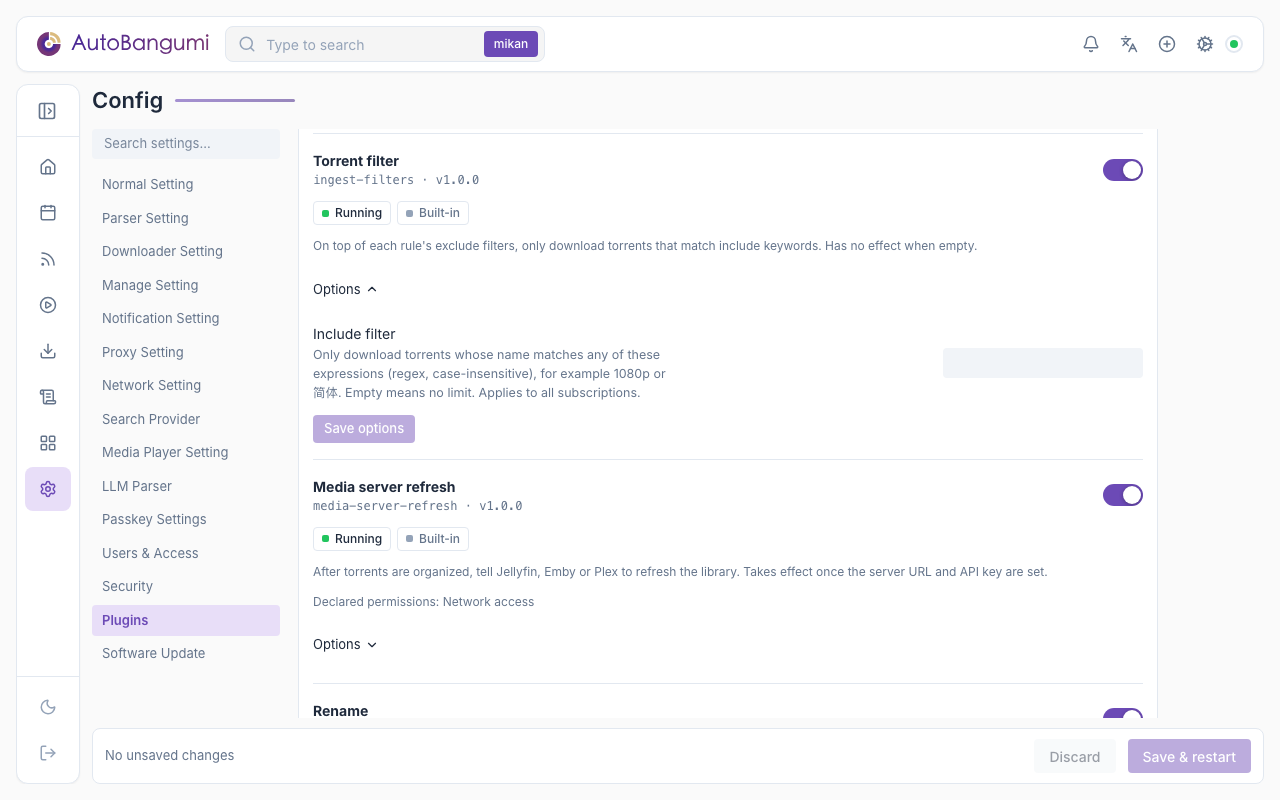
- Expand Options on the plugin card.
- Fill in the form. For list fields, use Add row and Remove.
- Click Save options.
AB checks the options before it saves them. If they are not valid, AB does not save them, and the old options stay. You can fill in the options of built-in and signed plugins before you enable them. For a plugin with required options (for example hardlink), fill in and save the options first. Then enable the plugin.
If the form cannot edit a field, it shows "This field type can't be edited here yet". Edit plugins.options.<plugin id> in config.json directly.
Plugin Errors
If the code of a plugin fails or times out 5 times in a row, AB disables the plugin. Its card then shows "Error" and the reason. The rest of AB continues to operate. For example, when AB disables the rename plugin, it handles every series as none.
To load the plugin again, correct the cause (for example, change the options and save them), or restart AB.
Sources and Trust
Plugins run inside the AB process with the same permissions as AB. AB uses the source of a plugin to decide if it trusts the plugin:
| Source | Location | Signature | How to enable |
|---|---|---|---|
| Built-in | Comes with AB | Released with AB | Available by default |
| Signed catalog | config/plugins/<id>/<version>/ | AB checks the ed25519 signature | Enabled when installed |
| Local | config/plugins/local/<id>/ | None | Turn on "Allow unsigned plugins", then enable it |
| pip | Python package with entry point autobangumi.plugins | None | Same as local |
If the same id is in more than one source, AB uses this order: built-in, signed catalog, local, pip.
Unsigned Plugins
Plugins from the local folder and from pip have no signature. Until you turn on Allow unsigned plugins in Settings → Plugins, AB does not run any code of these plugins, and their options form does not show.
WARNING
Enable only plugins that you trust. An unsigned plugin can read and write all files and use all network access that AB has.
To install a local plugin:
- Copy the plugin folder into
config/plugins/local/. The folder name must be the plugin id. - Restart AB.
- In Settings → Plugins, turn on Allow unsigned plugins. Then enable the plugin.
Signed Catalog
AB reads the signed plugin catalog from the GitHub release plugins. Before AB installs a plugin, it checks the signature and the sha256 of the catalog and of the plugin package. AB refuses packages that have no signature or an incorrect signature. Plugins from the catalog count as signed. They do not need "Allow unsigned plugins".
| Request | Description |
|---|---|
GET /api/v1/plugins/catalog | Lists the plugins in the catalog and the installed versions |
POST /api/v1/plugins/{id}/install | Installs or updates the plugin and enables it |
DELETE /api/v1/plugins/{id} | Removes a plugin that you installed from the catalog. Local plugins do not change |
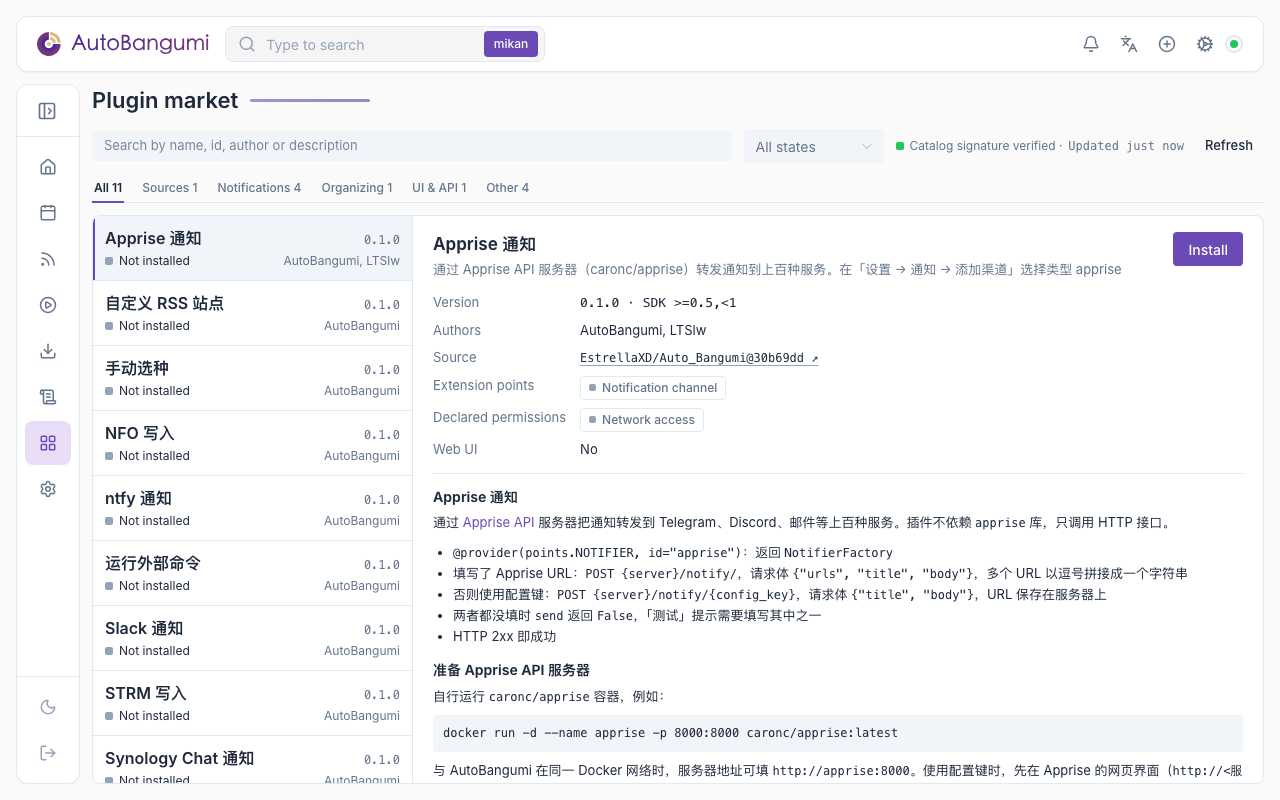
The Plugin market page lets you browse the catalog and install, update and remove plugins. To open it, click "Open plugin market" in Settings → Plugins. For signatures and the publish procedure, see Signing and Distribution.
Plugin Interface
Plugins can add their own interface at these locations. Only a running plugin shows its interface.
| Location | What you see |
|---|---|
| Settings page | A plugin section at the end of the section list. The sidebar and search of the settings page find it. Example: the "Hardlink backfill" section of hardlink |
| Bangumi edit dialog | Tabs at the top of the dialog. "Rule" is the usual edit form. Plugins supply the other tabs |
| Bangumi card | An action bar below the card title |
| Bangumi list page | A grid of widgets at the top of the page |
| Sidebar | An item with a puzzle icon before "Config". It opens /plugins/<plugin id> |
The bottom navigation bar on phones has no plugin pages. On a phone, open the address directly.
If the interface of a plugin fails, all interface parts of that plugin show "Plugin component failed to load." Other plugins and the page continue to operate. Open the page again to load the plugin interface again.
Events and Automation
Plugins can subscribe to AB events, for example "torrent organized" or "downloader unavailable". Plugins can also supply their own REST endpoints (/api/v1/plugins/<plugin id>/…) and MCP tools. See Plugin Development.